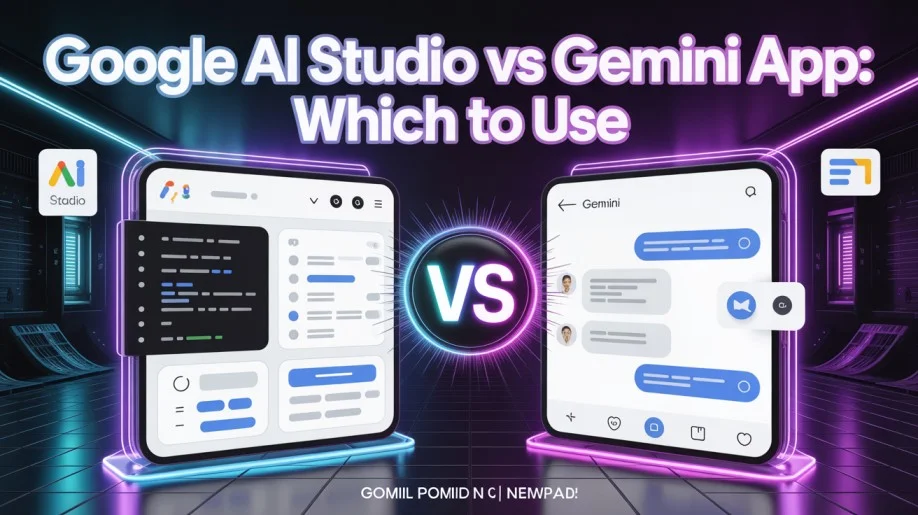
When people ask me which one to use, I usually respond with a question of my own: what are you actually trying to do? Because Google AI Studio and the Gemini app are aimed at completely different people, and choosing between them based on a features list misses the point. It’s like asking whether you should use Photoshop or Instagram. One is a tool. The other is an experience.
I’ve been using both regularly since early this year. AI Studio for testing prompts, building small automation scripts, and evaluating model outputs before committing to an API integration. Gemini for day-to-day questions, image generation, and the occasional document summary when I’m too lazy to read something myself. The workflows are different enough that I don’t think of them as alternatives. But a lot of people do, and if you’re one of them, here’s what actually separates the two.
What Google AI Studio Actually Is
AI Studio is a developer playground. That’s the most accurate description I can give. It’s where you test prompts against Gemini models directly, compare outputs across different model versions, tune system instructions, and eventually move toward building something with the API. The interface is technical. It shows you token counts, lets you adjust temperature and top-P settings, and exposes model parameters that the consumer Gemini app hides completely.
It’s free to use up to certain API limits, which makes it genuinely accessible for developers who want to experiment before committing to a paid API tier. I used it for weeks before I ever touched the paid options, just poking at different prompt structures to see how the model responded. That kind of low-stakes exploration is exactly what it’s built for.
One thing I noticed immediately: the output in AI Studio doesn’t always look the same as what the Gemini consumer app produces, even with identical prompts. The rendering, the image handling, and yes, the watermark behavior are all slightly different. If you’ve been generating images in AI Studio and wondering why they look different from Gemini app outputs, that’s not your imagination.
What the Gemini App Actually Is
The Gemini app is a polished consumer product. It’s built for people who want to use AI without thinking about how it works. The interface is clean, the responses are formatted for readability, and the whole experience is designed to feel approachable rather than technical.
For most people, this is the right tool. You can have multi-turn conversations, generate images, summarize documents, help with writing, and integrate with Google Workspace. If you’re a marketer, a student, a small business owner, or anyone who wants AI assistance without a learning curve, the Gemini app is where you should be spending your time.
What it doesn’t give you is control. You can’t adjust model parameters. You can’t run the same prompt against multiple model versions to compare outputs. You can’t easily extract raw API responses for use in other systems. The polish comes at the cost of configurability, and for developers that trade-off gets old fast.
The Watermark Difference Between the Two
This is something I haven’t seen covered well anywhere, so I’ll be specific about it because it actually matters for how you use each tool.
Both platforms apply watermarks to AI-generated images. The visible watermark and the invisible SynthID signal are present in outputs from both. But the behavior differs. In the Gemini app, the visible watermark is consistently applied to downloaded images. In AI Studio, particularly when you’re pulling images through API calls rather than downloading from the web interface, the visible watermark doesn’t always appear in the returned image data.
This isn’t a loophole and I’m not presenting it as one. Google’s reasons for watermarking AI-generated images are about transparency and AI content disclosure, and those reasons apply to both platforms. The SynthID invisible signal is present regardless of which interface you used or how you accessed the output. SynthID and the visible watermark serve different purposes, and confusing the two leads to false assumptions about what’s been “removed.”
For practical purposes: if you need clean image outputs for professional use, the API path through AI Studio gives you more flexibility on the visible layer. But removing the Gemini watermark without sending your image to a third-party service is a consideration regardless of which platform generated the image in the first place.
Pricing: What You’re Actually Paying For
Gemini app pricing
The Gemini app has a free tier and a paid tier (Gemini Advanced, included with Google One AI Premium). The paid tier unlocks better models, higher usage limits, longer context windows, and some workspace integrations. For regular users who hit the free tier limits, it’s worth it. I used the free tier for a long time before I actually needed to upgrade.
AI Studio pricing
AI Studio is free up to certain API call limits, after which you pay per token through Google Cloud. For developers, this is the sensible model. You pay for what you use. For someone just experimenting, the free tier is enough to do a lot. The confusion happens when people upgrade their Google One subscription thinking it will also affect their AI Studio experience. What Google One AI Premium actually changes is specific to the consumer Gemini app, not to AI Studio API access.
If you want higher API limits in AI Studio, that’s a Google Cloud billing conversation, not a Google One conversation. Different products, different billing systems. This confused me for longer than I’d like to admit.
Use Cases: Where Each One Actually Wins
Gemini app: daily use and quick tasks
Quick questions, image generation for personal projects, writing assistance, document summaries. The interface is fast, the responses are well-formatted, and you don’t have to think about anything technical. I use it almost every day for things that don’t require any configuration.
AI Studio: building and testing
If you’re developing a product, an automation, or anything that calls the Gemini API, AI Studio is your workspace. You can test prompts iteratively, compare model behavior, set system instructions, and see exactly what the API returns before you write a single line of integration code. Trying to do this through the consumer Gemini app is genuinely painful.
AI Studio: content creators who need volume
If you’re generating a lot of images programmatically, the API path gives you more control over output than clicking through the Gemini app interface repeatedly. I know creators who batch-generate thumbnail options through the API and then evaluate them manually. For that workflow, getting clean images for YouTube thumbnails from API outputs is more practical than doing it one by one through the consumer app. And for the visible watermark on those outputs, our free Gemini watermark remover tool handles it in your browser without any upload needed.
The Model Access Question
Both platforms run on Gemini models. But AI Studio typically gives you earlier access to newer model versions and experimental features than the consumer app does. When Google releases a new model variant, it often shows up in AI Studio first while the consumer app catches up.
For most people, this doesn’t matter. The consumer app’s model is more than capable for everyday tasks. But if you’re evaluating whether to build on a new model version, you want AI Studio access. That’s where you do the evaluation before you commit anything to production.
AI Studio also lets you generate video through some model configurations, which brings its own watermark considerations. The watermark situation on Gemini-generated video is more complicated than images, partly because SynthID in video form is more persistent across the kind of editing people typically do to video files.
The Technical Layer That AI Studio Exposes
One thing I appreciate about AI Studio that I can’t get in the Gemini app is seeing exactly how the model is applying watermarks at the output level. When you’re pulling API responses and examining the image data directly, you get a clearer picture of what’s actually in the output. The alpha blending technique behind Gemini’s visible watermark is something that becomes relevant when you’re doing any kind of post-processing on generated images, and you only really understand it when you’re working at the API level rather than through the consumer interface.
For non-developers, none of this matters. For anyone building with the API, it’s useful background.
My Actual Recommendation
Use the Gemini app if you’re a regular user who wants AI assistance without any technical overhead. It’s genuinely good at what it does, the interface is polished, and Gemini Advanced is worth the subscription if you use it heavily.
Use AI Studio if you’re a developer, a technical user who wants control over model behavior, or someone building anything that calls the API. The learning curve is mild for anyone with a technical background, and the flexibility you get is worth it.
Don’t try to use the Gemini app as a development environment. It’s not designed for it and the experience reflects that. Don’t try to use AI Studio as a daily chat interface either. It’s technically functional but it gets old. Both tools are good at what they’re for. The mistake is expecting them to be good at what they’re not for.
And if you’re generating product images or thumbnails through either platform and need the visible watermark removed, the e-commerce guide to removing the Gemini watermark from product images covers the full workflow, or you can use the free tool directly for simpler cases.
Frequently Asked Questions
Can I use Google AI Studio for free?
Yes, up to a point. There are free API call limits that are actually pretty generous for experimentation. Once you scale up, you’ll hit billing through Google Cloud.
Is the Gemini app better than AI Studio for image generation?
For casual use, the Gemini app is easier. For volume or programmatic generation, AI Studio’s API access gives you more control. The output quality is the same since they’re running the same underlying models.
Do both platforms add SynthID to generated images?
Yes. SynthID is applied at the model level, so it doesn’t matter which interface you used. The invisible watermark is present in outputs from both.
Does Google One AI Premium work in AI Studio?
No. Google One AI Premium upgrades your Gemini app experience. AI Studio uses Google Cloud billing separately. They’re different systems.
Which platform is better for YouTube content creators?
Depends on your workflow. If you’re generating one-off images for thumbnails, the Gemini app is fine. If you’re generating in bulk or building any kind of automated pipeline, AI Studio is the better starting point.
Is AI Studio suitable for non-technical users?
It’s more technical than the Gemini app, but it’s not impenetrable. If you’re comfortable with settings and don’t mind a less polished interface, you can figure it out. If the word “token” means nothing to you and you’d prefer not to learn, stick with the Gemini app.
Are the watermarks the same across both platforms?
The SynthID invisible signal is the same. The visible watermark can behave differently depending on whether you’re downloading from the consumer interface or pulling image data through the API. Either way, both types are worth understanding before you use the outputs for anything public-facing.
